|
WBEM (Web-Based Enterprise Management) is a set of systems management technologies developed to unify the management of distributed computing environments that provides users with information about the status of local or remote computer systems.
Monitoring Studio can execute WBEM queries on your system and consolidate these queries under a single WBEM Query instance in your BMC TrueSight Operations Management environment. It can also query the WBEM repository for class and instance information.
To execute a WBEM query
| 1. | Access the Monitoring Studio Configuration panel, as explained in the Configure Monitors chapter. |
| 2. | In the Monitors section, click the WBEM button. |
| 3. | The WBEM panel is displayed to provide connection information and credentials. |
| 4. | Configure the Connection Settings: |
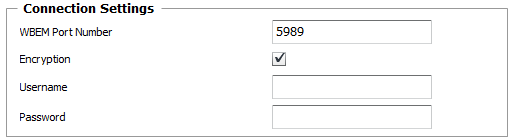
WBEM Query — Connection Settings
| ▪ | WBEM Port Number: Enter the port number you wish to use for the connection. By default, in standard environments, the port 5988 is used for non-encrypted data, while port 5989 is used for encrypted data. |
| ▪ | Encryption: Select this option to encrypt the query with the HTTPS protocol. HTTPS is a secure version of the Hyper Text Transfer Protocol (HTTP) based on the SSL (Secure Sockets Layer) protocol. SSL creates a secure connection between a client and a server, over which any amount of data can be sent securely. |
| ▪ | Username: Enter the username to use to perform the WBEM query. Leave blank to use the username provided at the host level. |
| ▪ | Password: Enter the password to use to perform the WBEM query. Leave blank to use the password provided at the host level. |
| 5. | Define the WBEM Query settings: |
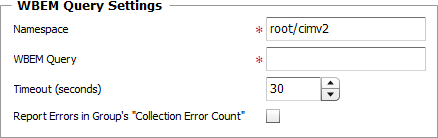
WBEM Query — Settings
| ▪ | Namespace: Enter the WBEM namespace (Example: root\emc). A namespace is a logical group of related monitor types representing a specific technology or area of management. |
| ▪ | WBEM Query: Enter your query (Example: SELECT * FROM Win32 process). |
| ▪ | Timeout (seconds): Specify the time in seconds after which the query will be stopped (Default: 30 seconds). If the query times out, the Status attribute of the Studio WBEM Query Monitor Type will be set to 2 (Failed) and an alarm will be triggered in TrueSight Operations Management. |
| ▪ | Report Errors in Group's "Collection Error Count": Select this option to have the Collection Error Count attribute of the Group reflect possible alerts triggered upon the WBEM query execution. The Collection Error Count attribute of the Group reports on the collection errors of all Monitors, associated to the Group, for which this option is available and selected, providing a global view of the collection errors for the whole Group. |
| 6. | Define the Monitor Settings: |
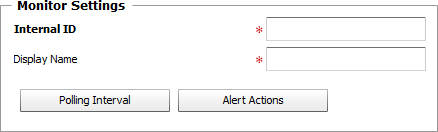
WBEM Query — Monitor Settings
| ▪ | Internal ID: Enter an ID to identify the managed WBEM query instance in TrueSight Operations Management. |
| ▪ | Display Name: Enter a name to identify the managed WBEM query instance in TrueSight Operations Management. |
| ▪ | Optional — Polling Interval: Set the frequency at which the data collection will be performed. Default is 2 minutes. |
| ▪ | Optional — Alert Actions: Define the action(s) Monitoring Studio needs to perform when the thresholds for this WMI query instance is breached. |
| 7. | Optional — Define the Content Processing rules you wish to apply to the WBEM query output: |

WBEM Query — Content Processing
| ▪ | String Searches: Define the search criteria for a specific string you wish to find or not find in the WBEM query output. |
| 8. | Click the Add to List button to complete the creation of the WBEM query instance. |
|


