|
The Web Request Monitor allows you to extract data from any Web-based interface. You can either monitor the availability of a Web page, extract useful information from a Web-based administration UI, or extract data from a Web service or a REST API. If your IT environment uses a proxy server, please make sure that the Proxy Settings are properly configured.
 Web Requests are always executed locally. Web Requests are always executed locally.
The Web Request Monitor enables you to configure the most common type of requests:
| • | GET that requests data from a specified resource. |
| • | POST, PUT and DELETE that submits data to be processed to a specified resource. |
Refer to the procedure corresponding to the type of Web request you wish to perform.
To perform a Web request (GET)
The GET method is commonly used to retrieve information from a given server using a specific URI. Requests using GET should only retrieve data and should have no other effect on the data.
The example illustrated in this section shows how to retrieve information about volumes on a EMC XtremIO server.
|
| 1. | Access the Monitoring Studio Configuration panel, as explained in the Configure Monitors chapter. |
| 2. | In the Monitors section, click the Web Requests button. |
| 3. | The Web Requests panel is displayed to define the web request settings. |
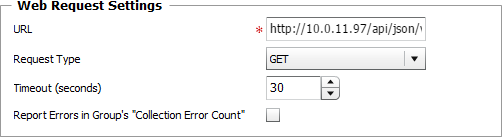
Web Request — Connection Settings
| ▪ | URL: Enter the URL of the resource that needs to be polled and monitored. It is possible to poll a secure web site by using the "https" method. |
| ▪ | Request Type: Select the GET. |
The current example polls the URL of an EMC XtremIO server using a GET request type to retrieve the required volume information.
|
 Some Web forms can be passed to the server with the HTTP GET method. In this case, the form data goes through the URL (http://server/form.php?varA=valueA&varB=valueB&…). Some Web forms can be passed to the server with the HTTP GET method. In this case, the form data goes through the URL (http://server/form.php?varA=valueA&varB=valueB&…).
| ▪ | Timeout (seconds): Specify the time in seconds after which the request will be stopped (Default: 30 seconds). If the request times out, the Status attribute of the Studio Web Request Monitor will be set to 2 (Failed) and an alarm will be triggered in TrueSight Operations Management. |
| ▪ | Report Errors in Group's "Collection Error Count": Select this option to have the Collection Error Count attribute of the Group reflect possible alerts triggered upon the Web Request execution. The Collection Error Count attribute of the Group reports on the collection errors of all Monitors, associated to the Group, for which this option is available and selected, providing a global view of the collection errors for the whole Group. |
| 4. | Optional — If you have configured Monitoring Studio to go through a proxy for processing Web Requests, you can choose to bypass the proxy for this Web Request specifically. This can be useful when the resource is located on the internal network and the proxy refuses to serve it. |

Web Request — Proxy Settings
| 5. | (Optional) Specify the HTTP Authentication credentials: |

Web Request — HTTP Authentication
| ▪ | Username: Enter the username for HTTP authentication. |
| ▪ | Password: Enter the password for HTTP authentication. |
The current example do not use specific HTTP Authentication; the authentication credentials will be provided through a header.
|
Refer to the HTTP Authentication chapter for further details.
| 6. | Optional — Specify Request Headers, that is Key (name) or Value pairs that are displayed in the request and response of message headers for Hypertext Transfer Protocol (HTTP). HTTP headers are an integral part of HTTP requests and responses and are mainly intended for the communication between the server and client in both directions. |
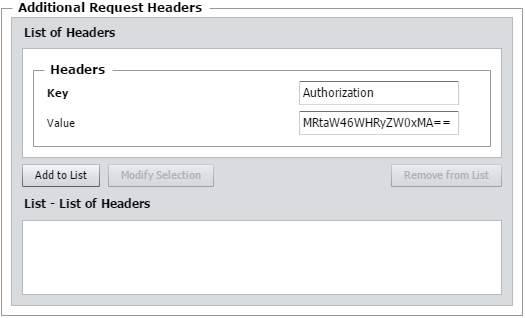
Web Request — HTTP Authentication
The current example uses a basic authentication header specific to EMC XtremIO REST API.
|
| ▪ | Enter the Key (name) and Value for the header, then click Add to List to create the header. |
| 7. | Define the Monitor Settings: |
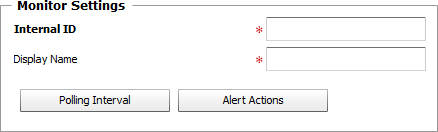
Web Request — Monitor Settings
| ▪ | Internal ID: Enter an ID to identify the managed Web Request instance in TrueSight Operations Management. |
| ▪ | Display Name: Enter a name to identify the managed Web Request instance in TrueSight Operations Management. |
| ▪ | (Optional) Polling Interval: Set the frequency at which the data collection will be performed. Default is 2 minutes. |
| ▪ | (Optional) Alert Actions: Define the action(s) Monitoring Studio needs to perform when the thresholds for this Web Request instance is breached. |
| 8. | Optional — Define the Content Processing rules you wish to apply to the Web Request output: |
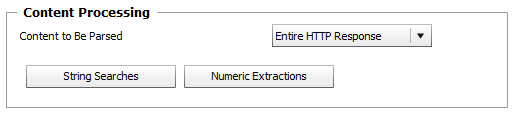
Web Request — Content Processing
| ▪ | Content to Be Parsed: Select what you would like to retrieve from the Web page returned by the Web server: Entire HTTP Response, Web Page with HTML Tags or Web Page without HTML Tags. |
The current example uses the "Extract Text from HTML" option is used to retrieve the required volume information from the parsed content.
|
| ▪ | String Searches: Define the search criteria for a specific string you wish to find or not find in the Web Request output. |
| ▪ | Numeric Extractions: Define any numeric value to be extracted from the Web Request output. |
| 9. | Click the Add to List button to complete the creation of the Web Request instance. |
To perform a Web request (POST, PUT, DELETE)
The example illustrated in this section shows a POST request performed on an XtremIO server to modify the size of a specific volume.
|
| 1. | Access the Monitoring Studio Configuration panel, as explained in the Configure Monitors chapter. |
| 2. | In the Monitors section, click the Web Requests button. |
| 3. | The Web Requests panel is displayed to define the web request settings. |
Web Request — Connection Settings
| ▪ | URL: Enter the URL of the resource that needs to be polled and monitored. It is possible to poll a secure web site by using the "https" method. |
| ▪ | Select the Request Type: |
| ▪ | POST: The POST method requests that the origin server accept the entity enclosed in the request as a new subordinate of the resource identified by the Request URL. |
| ▪ | PUT: The PUT method requests that the enclosed entity be stored under the supplied Request URL. |
| ▪ | DELETE: The DELETE method requests that the origin server deletes the resource identified by the Request URL. |
| ▪ | Timeout (seconds): Specify the time in seconds after which the request will be stopped (Default: 30 seconds). If the request times out, the Status attribute of the Studio Web Request Monitor will be set to 2 (Failed) and an alarm will be triggered in TrueSight Operations Management. |
The current example polls the URL of an EMC XtremIO server using a GET request type. The "Extract Text from HTML" option is used to retrieve the information about volumes for which a specific attribute (size) will be modified by a request body (step 8).
|
| ▪ | Report Errors in Group's "Collection Error Count": Select this option to have the Collection Error Count attribute of the Group reflect possible alerts triggered upon the Web Request execution. The Collection Error Count attribute of the Group reports on the collection errors of all Monitors, associated to the Group, for which this option is available and selected, providing a global view of the collection errors for the whole Group. |
| 11. | Optional — If you have configured Monitoring Studio to go through a proxy for processing Web Requests, you can choose to bypass the proxy for this Web Request specifically. This can be useful when the resource is located on the internal network and the proxy refuses to serve it. |
Web Request — Proxy Settings
| 12. | Specify the HTTP Authentication credentials: |
Web Request — HTTP Authentication
| ▪ | Username: Enter the username for HTTP authentication. |
| ▪ | Password: Enter the password for HTTP authentication. |
The current example do not use specific HTTP Authentication; the authentication credentials will be provided through a header.
|
Refer to the HTTP Authentication chapter for further details.
| 5. | Optional — Specify Request Headers, that is Key (name) or Value pairs that are displayed in the request and response of message headers for Hypertext Transfer Protocol (HTTP). HTTP headers are an integral part of HTTP requests and responses and are mainly intended for the communication between the server and client in both directions. |
Web Request — HTTP Authentication
| ▪ | Enter the Key (name) and Value for the header, then click Add to List to create the header. |
| ▪ | Repeat this operation for any other header you wish to specify. |
| 6. | Configure Request Body Type Settings: |
Provide the required information according to the type of Request Body you have selected:
A - Request Body (None)
No additional information is needed. Simply configure the Monitor settings, and define the Content Processing settings to complete the configuration of the Web Request Monitor.
B - Request Body (Form)
Configure the required settings:
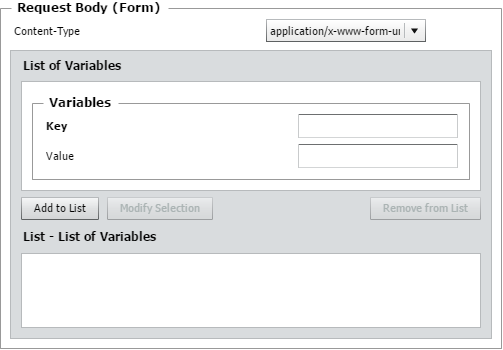
Web Request — Request Body (Form)
| ▪ | Content-Type: Select the option corresponding to the type of content for the request: |
| o | use multipart/form-data to transmit binary (non-alphanumeric) data |
| o | use application/x-www-form-urlencoded otherwise. |
| ▪ | Variables: Provide a Variables' Key (name) and Value pair for your query. Click Add to List to create the variable. |
C - Request Body (Free)
Configure the required settings:

Web Request — Request Body (Form)
| ▪ | Content-Type: Enter a content-type for the body request. |
| ▪ | Provide the Body of the request (single line) or the path to the file containing the request Body (on the PATROL Agent) if the body contains multiple lines. The file path can include environment variables.
If a file is provided, the Monitoring Studio discovery will read the file on the localhost and use its content as the request body. |
The current example uses a request body (Free) with the application/json body content-type that provides the name of the target volume and the attribute to modify in JSON format. In this case the size will be set to 10000m.
|
| 7. | Define the Monitor Settings: |
Web Request — Monitor Settings
| ▪ | Internal ID: Enter an ID to identify the managed Web Request instance in TrueSight Operations Management. |
| ▪ | Display Name: Enter a name to identify the managed Web Request instance in TrueSight Operations Management. |
| ▪ | Optional — Polling Interval: Set the frequency at which the data collection will be performed. Default is 2 minutes. |
| ▪ | Optional — Alert Actions: Define the action(s) Monitoring Studio needs to perform when the thresholds for this Web Request instance is breached. |
| 8. | Optional — Define the Content Processing rules you wish to apply to the Web Request output: |
Web Request — Content Processing
| ▪ | Content to Be Parsed: Select the option corresponding to the content you want to retrieve from the Web page output returned by the Web server: Entire HTTP Response, Web Page with HTML Tags or Web Page without HTML Tags. |
| ▪ | String Searches: Define the search criteria for a specific string you wish to find or not find in the Web Request output. |
| 9. | Click the Add to List button to complete the creation of the Web Request instance. |
| 

