|
The Windows Event Monitor tracks events posted by your technology to consolidate the monitoring under a single icon and avoid you to look up in the Windows Event Log. It also enables you to define automatic acknowledgment of previously triggered alerts by specifying the Windows event that will acknowledge the alert.
 This function is only available to agents running on Windows systems. Windows 2003 cannot be monitored remotely. This function is only available to agents running on Windows systems. Windows 2003 cannot be monitored remotely.
To monitor a Windows event log
| 1. | Access the Monitoring Studio Configuration panel, as explained in the Configure Monitors chapter. |
| 2. | In the Monitors section, click the Windows Event Logs button. |
| 3. | The Windows Event Logs panel is displayed. Provide the required Windows event log information. |
| 4. | Define the Event Settings: |
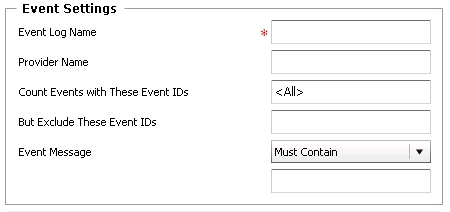
Windows Event Logs — Event Settings
| ▪ | Event Log Name: Enter the name of the Windows event log you wish to monitor. |
| ▪ | Provider Name: Enter the name of the event provider. Typically, the software or driver that triggers the event. |
| ▪ | Count Events with These Event IDs: Enter the ID(s) of the event(s) for which Monitoring Studio will trigger an alert. |
| ▪ | But Exclude These Event IDs: Enter the ID(s) of the event(s) for which Monitoring Studio will NOT trigger an alert.
Use a comma (,) to separate several IDs or a hyphen (-) between the first and the last ID to indicate a range (Example: 4372,4375,4380-4385). |
| ▪ | Event message - Must Contain/Must Not Contain: Enter the string or regular expression to look for, and specify whether or not it should be found in the event message. |
| 5. | Configure the Event Level settings. This option allows you to select the Windows Event type you wish to monitor. Available options are: Critical, Error, Warning, Information. |
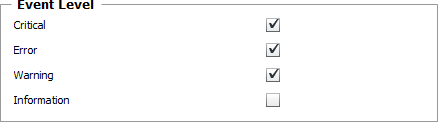
Windows Event Logs — Event Level Settings
| 6. | Optional — Define the Acknowledgment Rule. The automatic acknowledging feature allows you to manage the alerts for the Matching Event Count attribute: |
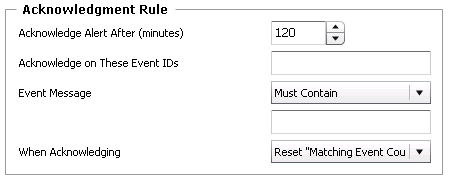
Windows Event Logs — Acknowledgment Rule Settings
| ▪ | Acknowledge Alert After (minutes): Specify the number of minutes after which you wish Monitoring Studio to automatically acknowledge the alerts. Default: 120 minutes. |
| ▪ | Acknowledge on These Event IDs: Enter the ID(s) of the event(s) for which Monitoring Studio will automatically acknowledge the alerts. |
Use a comma (,) to separate several IDs or a hyphen (-) between the first and the last ID to indicate a range.
| ▪ | Event message - Must Contain/Must Not Contain: Enter the string or regular expression to look for, and specify whether or not it should be found in the event message. |
Example
6005 is the ID of the event that occurs when the Event log service is started. The first line of the description of such an event is "The Event log service was started." The Event ID and the event description can be used by product support representatives to troubleshoot system problems.
|
Finally, specify the action you wish Monitoring Studio to perform when acknowledging an alert:
| ✓ | Select the Reset "Matching Event Count" option to have Monitoring Studio automatically reset the counter to zero. |
| ✓ | Select the Decrease "Matching Event Count by One" option to have Monitoring Studio automatically decrease the value of the counter by one. Use this option if you need the solution to acknowledge each event count to get a close follow-up on the log activity. |
| 7. | Define the Monitor Settings: |
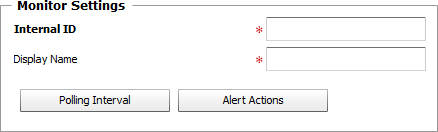
Windows Event Logs — Monitor Settings
| ▪ | Internal ID: Enter an ID to identify the managed event log instance in TrueSight Operations Management. |
| ▪ | Display Name: Enter a name to identify the managed event log instance in TrueSight Operations Management. |
| ▪ | Optional — Polling Interval: Set the frequency at which the data collection will be performed. Default is 2 minutes. |
| ▪ | Optional — Alert Actions: Define the action(s) Monitoring Studio needs to perform when the thresholds for this event log instance is breached. |
| 8. | Configure the Windows Event Cache refreshing frequency: |

Windows Event Logs — Windows Event Cache Settings
| ▪ | Minimum Cache Refresh (seconds): Use the spin button to set the minimum number of seconds Monitoring Studio must wait before refreshing the event cache. Default is 15 seconds. Monitoring Studio relies on a cache mechanism to share the information among the Monitors in order to use as little resources as possible on the target host and over the network. The cache will be refreshed if one of the Monitors needs to collect data (polling interval reached) and the cache is older than the selected minimum cache refresh time. |
| 9. | Click the Add to List button to complete the creation of the Window event log instance. |
|


