|
Because file systems are often a critical resource for technologies, TrueSight Operations Management - Monitoring Studio provides a File System monitoring tool to rapidly identify which components are impacted when a file system is full.
To monitor a file system
| 1. | Access the Monitoring Studio Configuration panel, as explained in the Configure Monitors chapter. |
| 2. | In the Monitors section, click the File Systems button. |
| 3. | The File Systems panel is displayed to provide the connection credentials and define the file system settings. |
| 4. | Provide the File System information: |

File System — File Settings
| ▪ | File System: Enter the name of the file system you wish to monitor. |
| 5. | Define the Monitor Settings: |
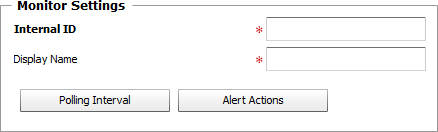
File System — Monitoring Settings
| ▪ | Internal ID: Enter an ID to identify the managed file system instance in BMC TrueSight Operations Management. |
| ▪ | Display Name: Enter a name to identify the managed file system instance in BMC TrueSight Operations Management. |
| ▪ | Optional — Polling Interval: Set the frequency at which the data collection will be performed. Default is 2 minutes. |
| ▪ | Optional — Alert Actions: Define the action(s) Monitoring Studio needs to perform when the thresholds for this file system instance is breached. |
| 6. | Configure the File System Cache refreshing frequency. Monitoring Studio relies on a cache mechanism to share the information among the Monitors in order to use as little resources as possible on the target host and over the network. The cache will be refreshed if one of the Monitors needs to collect data (polling interval reached) and the cache is older than the selected minimum cache refresh. |

File System — File System Cache
| ▪ | Minimum Cache Refresh (seconds): Use the spin button to set the minimum number of seconds Monitoring Studio must wait before refreshing the file system cache. Default is 15 seconds. |
| 7. | Click the Add to List button to complete the creation of the file system instance. |
| 

