|
Many applications store critical data as files in the filesystem (for example, each pending query is stored as a separate file in a specific folder). In such cases, monitoring the folders (directories) containing these files can prove very useful to detect an abnormal behavior (for example: many files are piling up in the "queue" folder).
The Folder Monitoring tool monitors folders (directories) that store files processed by the application. It measures their size, growth and flow (including how many files moved in, how many moved out, etc.).
This feature allows you to:
| • | Ensure that your application is not overloaded (number of files to be processed, e.g.). |
| • | Measure the application activity (how many removed files, that is, how many have been processed). |
| • | Check the age of the newest file (whether the data is coming in properly…). |
| • | Check the age of the oldest file (whether the application is running late in processing queued files). |
 By default, the Folder Monitor automatically times out after 30 seconds. By default, the Folder Monitor automatically times out after 30 seconds.
To monitor a folder
| 1. | Access the Monitoring Studio Configuration panel, as explained in the Configure Monitors chapter. |
| 2. | In the Monitors section, click the Folders button. |
| 3. | The Folders panel is displayed to provide the connection credentials and define the folder settings. |
| 4. | Provide the Credentials information: |
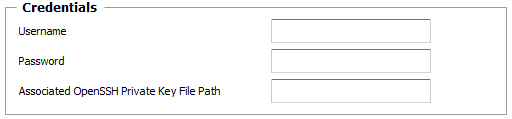
Folders — Credentials Settings
| ▪ | Username: Enter the username to use to establish the connection with the Host on which the folder you wish to monitor is located. Leave this field blank to use the username provided for the Host at the Monitor Group level. |
| ▪ | Password: Enter the password to use to establish the connection with the Host on which the folder you wish to monitor is located. Leave this field blank to use the password provided for the Host at the Monitor Group level. |
| ▪ | Optional — Associated OpenSSH Private Key File Path: When monitoring remote hosts running UNIX, Linux or other types of operating systems that support SSH authentication key file, you may need to provide an OpenSSH private key file to establish a secured connection with the remote host. Enter the path of the OpenSSH private key file you wish to use to establish a connection with the remote host and enter the optional PassPhrase in the Password field. |
 The Private Key File should exists on the PATROL Agent node. The Private Key File should exists on the PATROL Agent node.
| 5. | Define the Folder Settings: |
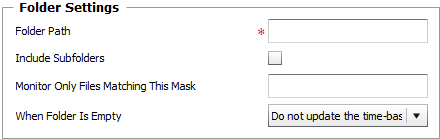
Folders — Folder Settings
| ▪ | Folder Path: Enter the name and path of the folder (directory) you wish to monitor.You can use the ? wildcard to replace one character; the * wildcard to replace one or more characters or a date/time format to dynamically assign the current date or time in the file name. Simply insert the following string in the "Folder Path" field, where the date/time format appears, replacing the three dots by date format symbols: %{SEN_TIME:…}. For the complete list of format symbols, definitions and examples, please refer to the Format Symbols chapter. |
 The folder path supports environment variables (example: %PATROL_HOME%). The folder path supports environment variables (example: %PATROL_HOME%).
| ▪ | Include Subfolders: Select this option to monitor all the sub-folders of the above-specified folder. |
| ▪ | Optional — Monitor Only Files Matching This Mask: Specify the file types or enter masks to have Monitoring Studio only monitor the corresponding files (e.g.:.txt;myFiles?.log;file.*). You can use wildcards such as "*" to replace any number of characters, or "?" to replace just one character. You may also use several masks separated by ";". TrueSight Operations Management - Monitoring Studio will only take into account the files matching the masks entered. |
| ▪ | When Folder Is Empty: Select the option corresponding to the action you want Monitoring Studio to perform on the time-based attributes when the monitored folder is empty (the time-based attributes are: Oldest Modified File Elapsed Time, Last Modified File Elapsed Time and Longest Time File Remains In Folder): |
| • | Do not update the time-based attributes: The attributes values are not updated, and the alerts are not cleared (Default). In this case, the attributes keep the same value as previously set upon the last collect. If the last value set was within an alarm range, the alert remains active until the value is set again, that is when the folder will no longer be empty. |
| • | Suspend the time-based attributes: The attributes values are not set, but any alert is cleared when the folder becomes empty. In this case, the attributes are suspended (i.e. deactivated) and immediately enabled again. The value of these attributes are not updated and the attributes remain offline in TrueSight OM until a new value is set, that is when the folder will no longer be empty. If the attributes were previously in alarm, the alert is not cleared (No PATROL event (STD/9) is triggered). |
| • | Set the time-based attributes to zero: The attributes values are reset to zero and all alerts are automatically acknowledged. In this case, the attributes are set to zero as long as the folder remains empty. While the value could be considered improper, it ensures that previous alerts are cleared and that the corresponding PATROL event (STD/9) is triggered (assuming that zero is out of the alarm range). |
| 6. | Define the Monitor Settings: |
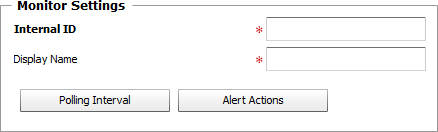
Folders — Monitor Settings
| ▪ | Internal ID: Enter an ID to identify the monitored folder instance in BMC TrueSight Operations Management. |
| ▪ | Display Name: Enter a name to identify the monitored folder instance in BMC TrueSight Operations Management. |
| ▪ | Optional — Polling Interval: Set the frequency at which the data collection will be performed. Default is 2 minutes. |
| ▪ | Optional — Alert Actions: Define the action(s) Monitoring Studio needs to perform when the thresholds for this managed folder instance is breached. |
| 7. | Click the Add to List button to complete the creation of the folder instance. |
|


