|
Many software technologies that run on any Windows operating system run as Windows services, running as background processes with no direct user interface and no logged-on user. Typically, they start automatically and are expected to keep on running without human intervention. When one of these critical services fails, many users and external services can immediately be affected. Therefore, making sure that these services are seamlessly running is a key requirement for most system administrators.
 This function is only available to agents running on Windows systems. This function is only available to agents running on Windows systems.
To monitor a Windows service
| 1. | Access the Monitoring Studio Configuration panel, as explained in the Configure Monitors chapter. |
| 2. | In the Monitors section, click the Windows Services button. |
| 3. | The Windows Services panel is displayed to specify the service to monitor. |
| 4. | Provide the Name of the Windows service you wish to monitor. |

Windows Service — Service Name
| 5. | Configure the Status Interpretation settings. This feature allows you to qualify the Status attribute of a Windows service according to its state. The solution can then trigger an alert according to the Status attribute value. For example, if you apply Failed to the Status attribute for the Stopped state, an alert (Alarm) will be triggered when the Windows service is stopped and its Status attribute will be set to Failed. |
| ▪ | Optional — For each possible service state, you can select the value of the Status attribute: OK, Suspicious or Failed. By default, the service state will be interpreted as listed in the table below: |
|
|
|
Running
|
OK
|
Paused
|
Suspicious
|
Stopped
|
Failed
|
Pending Start
|
Suspicious
|
Pending Continue
|
Suspicious
|
Pending Pause
|
Suspicious
|
Pending Stop
|
Suspicious
|
Not Installed
|
Failed
|
Unknown
|
Suspicious
|
| 6. | Define the Monitor Settings: |
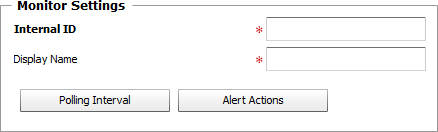
Windows Service — Monitor Settings
| ▪ | Internal ID: Enter an ID to identify the monitored service in TrueSight Operations Management. |
| ▪ | Display Name: Enter a name to identify the monitored service in TrueSight Operations Management. |
| ▪ | Optional — Polling Interval: Set the frequency at which the data collection will be performed. Default is 2 minutes. |
| ▪ | Optional — Alert Actions: Define the action(s) Monitoring Studio needs to perform when the thresholds for this managed service instance is breached. |
| 7. | Click the Add to List button to complete the creation of the Windows service instance. |
|


