|
PSL (PATROL Script Language) is a language developed by BMC for writing complex application discovery procedures, parameters, arbitrary commands, and tasks. This language is commonly used for KM development but can also be useful to IT administrators as they can access the internal information of the PATROL Agent through PSL commands.
The PSL Command Monitor fills the gap of what other Monitors cannot offer you. This feature allows you to run PSL commands on the local PATROL Agent system using the default PATROL Agent credentials. You can then define String Searches and Numeric Value Extractions that will help you parse and analyze the output of PSL commands.
 The PSL Command Monitor is intended for advanced users with solid experience in PSL. The PSL Command Monitor is intended for advanced users with solid experience in PSL.
To run a PSL command
| 1. | Access the Monitoring Studio Configuration panel, as explained in the Configure Monitors chapter. |
| 2. | In the Monitors section, click the PSL Commands button. |
| 3. | The PSL Commands panel is displayed. Define the PSL Command Settings: |
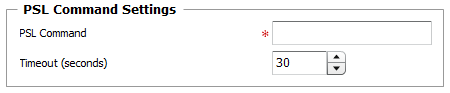
Analyzing PSL Commands — PSL Command Settings
| ▪ | PSL Command: Enter the PSL command or the full path to the PSL file that Monitoring Studio will execute. PSL commands are executed on local host, where the PATROL Agent is running. |
 The PSL file path can include environment variables (example: %PATROL_HOME%\lib\psl\patroldiags.psl). The PSL file path can include environment variables (example: %PATROL_HOME%\lib\psl\patroldiags.psl).
You can for example execute simple PSL commands to check the health of the PATROL Agent:
Examples:
| • | system("%PSLPS"); # Reports the PSL processes and their status |
| • | system("%DUMP RUNQ"); # Reports the list of items scheduled in the run queue |
| • | system("%STAT ALL"); # Reports all Agent memory usage statistics |
|
| ▪ | Timeout (seconds): Timeout: Enter the time in seconds after which the PSL Command will be stopped (Default: 30 seconds). When the timeout is reached, Monitoring Studio will consider that the PSL command has failed to execute properly and will set the value of the Status attribute to 2 (Failed). No further analysis will be performed. |
| 4. | Define the Monitor Settings: |
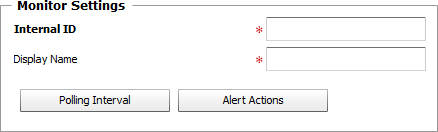
Analyzing PSL Commands — Monitor Settings
| ▪ | Internal ID: Enter an ID to identify the managed PSL Command instance in TrueSight Operations Management |
| ▪ | Display Name: Enter a name to identify the managed PSL Command instance in TrueSight Operations Management. |
| ▪ | Optional — Polling Interval: Set the frequency at which the data collection will be performed. Default is 2 minutes. |
| ▪ | Optional — Alert Actions: Define the action(s) Monitoring Studio needs to perform when the thresholds for any attribute of this PSL Command is breached. |
| 5. | Optional — Define the Content Processing rules you wish to apply to the PSL Command output: |

Analyzing PSL Commands — Content Processing Settings
| ▪ | String Searches: Define the search criteria for a specific string you wish to find or not find in the PSL Command output. |
| 6. | Click the Add to List button to complete the creation of the PSL Command instance. |
| 

