|
The Process Monitor also allows you to enter search criteria to identify the process to be monitored:
| 1. | In the PATROL Console, right-click the Host icon and select KM Commands > New > Monitor... |
| 2. | Select Process from the drop-down list and click Next. |
| 3. | Check Enter the criteria to select processes and click Next. The following dialog box is displayed: |
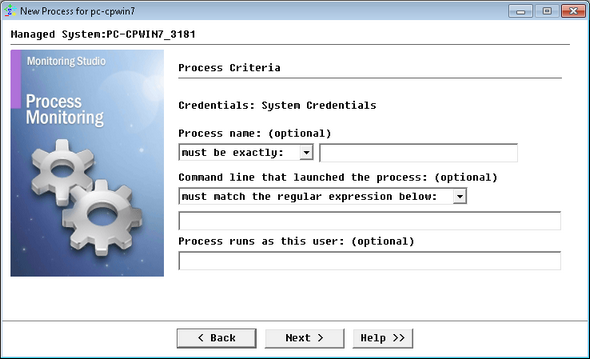
Entering Search Criteria - Enter criteria to identify and monitor processes
| 4. | Specify your search criteria: |
| ▪ | (Optional) In the Process name section, select a condition option and enter the name of the process you wish to monitor. |
| ▪ | (Optional) In the Command line that launched the process section, select a condition option and enter a regular expression. Only processes that have been launched by a command-line matching this regular expression will be monitored. |
| ▪ | (Optional) In the field Process runs as this user, enter the user name the monitored process is running as. |
 All fields are optional but at least one field must be completed. The process to monitor must match all the criteria if more than one is specified. All fields are optional but at least one field must be completed. The process to monitor must match all the criteria if more than one is specified.
Examples:
|
|
|
Example 1
|
| • | Process name MUST BE EXACTLY patrolagent.exe |
| • | Command-line = <nothing> |
|
PatrolAgent.Exe
C:\Patrol\PatrolAgent.exe -p 3181
C:\Patrol\PatrolAgent.exe
|
Example 2
|
| • | Process name MUST BE EXACTLY patrolagent.exe |
| • | Command-line MUST MATCH THE REGULAR EXPRESSION -[pP] 3181 |
|
C:\Patrol\PatrolAgent.exe -p 3181
|
Example 3
|
|
| • | Process name MUST CONTAIN Pat |
| • | Command-line = <nothing> |
|
PatrolAgent.exe
PatProcess.exe
PatrolPerf.exe
|
To monitor all processes of a selected user, fill out the "User" field and leave "Process name" and "Command-line" empty.
 Search criteria are case-sensitive on UNIX and Linux. Search criteria are case-sensitive on UNIX and Linux.
| 

