|
Because file systems (or Windows logical disks) are often a critical resource for technologies, Monitoring Studio provides a File System Monitor to rapidly identify which technologies are impacted when a file system is full.
To monitor a file system
| 1. | In the PATROL Console, right-click the Host or Monitor Group icon and select KM Commands > New > Monitor... |
| 2. | Select File System from the drop-down list and click Next. |
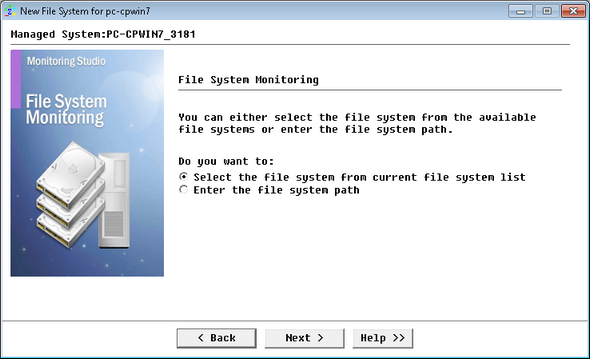
Monitoring a File System - File System Access
| 3. | Specify how you want to select the file system to monitor: |
| ▪ | Select the file system from current file system list |
| ▪ | Enter the file system path |
| 4. | Select the file system you wish to monitor or enter the file system path and click Next. |
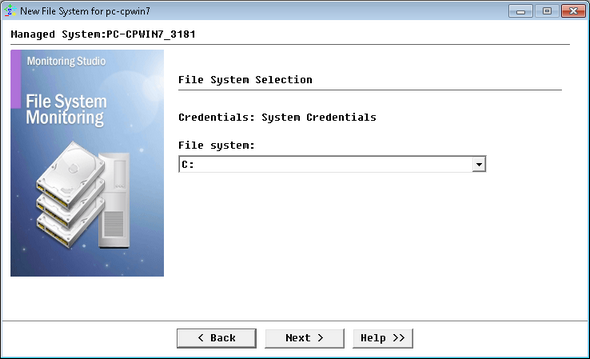
Monitoring a File System - File System Selection
| 6. | Click Finish. The corresponding File System instance (File System: <Display Name>) is created in the PATROL Console. The collected parameters for File System Monitors are listed in the SEN_MS_FILESYSTEM chapter. |
Configuring the File System Cache Refreshing Frequency
Monitoring Studio relies on a cache mechanism to share the information among the Monitors in order to use as little resources as possible on the target Host and over the network. The cache will be refreshed if one of the Monitors needs to collect data (polling interval reached) and the cache is older than the selected minimum cache refresh.
All file systems usage data on the selected Host are cached and shared by all File System Monitors defined on this Host. By default, the file system cache is refreshed minimum every 15 seconds. It is however possible to change this minimum cache refresh interval as described in the Setting the Polling Interval section.
| 

