|
The File Monitor is designed to monitor the presence, content, growth and change of a specific file. Therefore, the solution is able to instantly detect and alert when a critical file goes missing or if the file size is growing too fast for example. It is one of the most important monitoring tools offered by Monitoring Studio KM for PATROL as a lot of technologies deal with files and many of them are critical. The most typical usage of file monitoring is parsing a log file. Most technologies use log files to trace their operations and notify operators when failures occur.
Selecting the right file type to monitor (flat or log) is essential to allow Monitoring Studio to read the monitored file correctly. Note that searching strings in flat or log files is also performed slightly differently: Flat files are entirely updated and therefore need to be parsed entirely, as opposed to log files where new lines are appended at the end of the file - and hence only these new lines need to be analyzed.
To monitor a file (flat and log)
| 1. | In the PATROL Console, right-click the Host or Monitor Group icon and select KM Commands > New > Monitor... |
| 2. | Select File from the drop-down list and click Next. |
| 3. | Specify the type of file that you wish to monitor: |
| ▪ | Log file: if you only want the new lines to be parsed when searching for strings or numeric values, or performing value mapping |
| ▪ | Flat file: If you want the entire file to be parsed when searching for strings or numeric values, or performing value mapping |
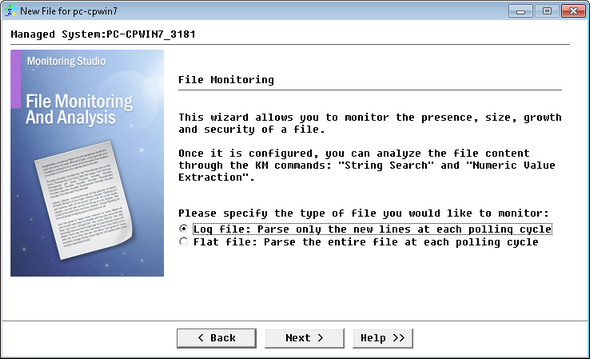
Monitoring a File - File Type Selection
| 4. | Click Next to continue. |
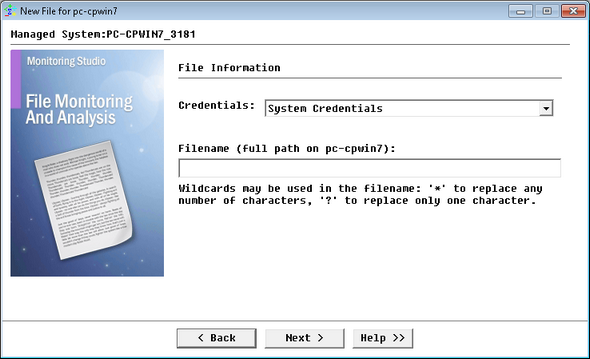
Monitoring a File - File Information
| 5. | Credentials: Select the type of credentials that you want to use for monitoring the file: |
| ▪ | Agent's Default Account: Uses the PATROL Agent credentials for localhost monitoring |
| ▪ | System Credentials (default): Uses the credentials previously specified when creating the Host |
| ▪ | Add new credentials...: Lets you set new credentials for this specific monitoring. Refer to the Setting Credentials chapter for detailed information |
| 6. | Identify the file to monitor: |
| ▪ | Filename: Indicate the path and name of the file to be monitored. You can use: |
| ▪ | the ? wildcard to replace one character; the * wildcard to replace one or more characters. |
 The filename full path supports environment variables such as %PATROL_HOME%. The filename full path supports environment variables such as %PATROL_HOME%.
 If multiple files match the file mask, Monitoring Studio will monitor the most recent file matching this mask. If multiple files match the file mask, Monitoring Studio will monitor the most recent file matching this mask.
| ▪ | a date/time format to dynamically add the current date or time to the file name. Simply insert the following string in the "Filename" field, where the date/time format appears, replacing the three dots by date format symbols: %{SEN_TIME:…}. For the complete list of format symbols, meaning and examples, please refer to the Format Symbols for Macros section. Example: %{SEN_TIME:%Y-%m-%d %H:%M:%S} |
| 7. | Select the parameters you want to monitor. Refer to the SEN_MS_FILE section for details on parameters. |
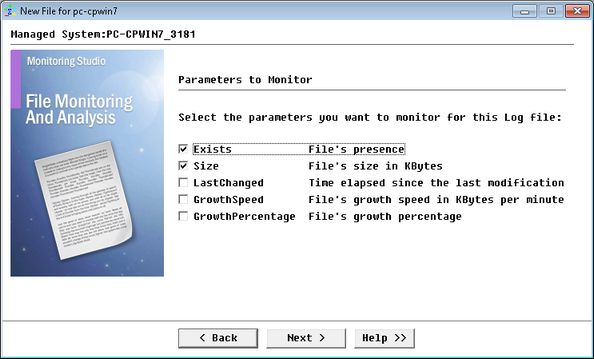
Monitoring a File - Parameters Selection
| 10. | Click Finish. The corresponding File instance (Log/Flat File: <Display Name>) is created in the PATROL Console. The collected parameters for File Monitors are listed in the SEN_MS_FILE chapter. |
To restart the scan of Log Files
When looking for strings or numbers in a log file, the file content is scanned as new content is added. This means that the information that is in the file is only scanned once and then skipped over by the next polling. This option offers the possibility to restart the scanning from the beginning of the file. To do so:
| 1. | Right-click the Log File> KM commands > Restart Scan |
| 2. | A message prompts for confirmation. |
| 3. | Click the Yes button to proceed. At the next polling, the entire file will be scanned. |
 Once this option has been selected and confirmed, it cannot be canceled. Once this option has been selected and confirmed, it cannot be canceled.
| 

