|
For security purpose, some technologies may require additional privileges to allow access to their data. In this case, Monitoring Studio enables users to:
 System Credentials cannot be edited or deleted using the below menu commands. Use the "Edit" menu command from the Host icon to edit System Credentials. System Credentials cannot be edited or deleted using the below menu commands. Use the "Edit" menu command from the Host icon to edit System Credentials.
To add new credentials for local or Windows hosts
| 1. | Right-click the Host icon > KM Commands > Credentials > New Credentials... |

Setting Credentials - New Credentials
| 1. | Current Credentials: Click this button to display the list of previously configured credentials. |
| 2. | Provide the following information: |
| ▪ | Username: Enter the username on the target host. |
| ▪ | Password: Enter the corresponding password for the user. Leave this field empty if, for security reasons, you want Monitoring Studio to prompt for the password every time you add or edit a Monitor using specific credentials. |
| ▪ | (Optional) Associated OpenSSH Private Key File Path: This option is only available for monitoring remote hosts running UNIX, Linux or other types of operating system that support SSH authentication key file. |
| ▪ | (Optional) Label: Enter the label for the new credentials. |
 If no label is provided, the username will be used as the label and set by the credentials wizard. If no label is provided, the username will be used as the label and set by the credentials wizard.
| 4. | Click OK. The new credentials are successfully added and ready to use. |
To add new credentials for remote UNIX/Linux hosts
| 2. | Right-click the Host icon > KM Commands > Credentials > New Credentials... |
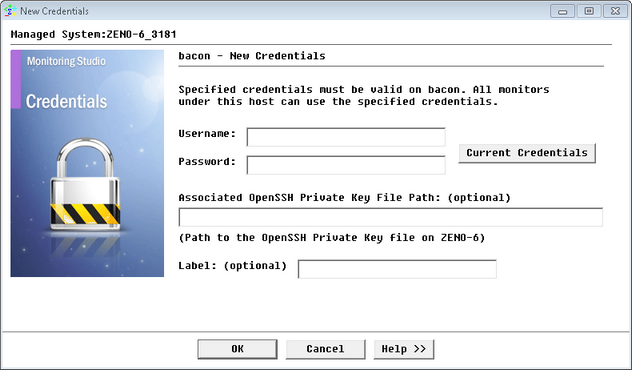
Setting Credentials - New Credentials
| 3. | Current Credentials: Click this button to display the list of previously configured credentials. |
| 4. | Provide the following information: |
| ▪ | Username: Enter the username on the target host. |
| ▪ | Password: Enter the corresponding password for the user. Leave this field empty if, for security reasons, you want Monitoring Studio to prompt for the password every time you add or edit a Monitor using specific credentials. |
| ▪ | (Optional) Label: Enter the label for the new credentials. |
If no label is provided, the username will be used as the label and set by the credentials wizard.
| 6. | (Optional) Associated OpenSSH Private Key File Path: When monitoring remote hosts running UNIX, Linux or other types of operating systems that support SSH authentication key file, you may need to provide an OpenSSH private key file to establish a secured connection with the remote host. Enter the path of the OpenSSH private key file you wish to use to establish a connection with the remote host and enter the optional PassPhrase in the Password field. |
The Private Key File should exists on the PATROL Agent node.
| 7. | Click OK. The new credentials are successfully added and ready to use. |
To edit credentials
| 1. | Right-click the Host icon > KM Commands > Credentials > Edit Credentials... |

Setting Credentials - Credentials Selection
| 2. | Select the Credentials to edit from the drop-down list and click Next. |
 The screen provided below as an example may vary according to the target host system type. The screen provided below as an example may vary according to the target host system type.

Setting Credentials - Edit Credentials
| 3. | Monitors using these credentials: Click this button to see which Monitor(s) is/are currently using these Credentials. |
| 4. | Modify the following information: |
| ▪ | Username: Edit the username on the target host. |
| ▪ | Password: Edit the corresponding password for the user. Leave this field empty if, for security reasons, you want Monitoring Studio to prompt for the password every time you add or edit a Monitor using specific credentials. |
| ▪ | (Optional) Label: Edit the label for the new credentials. |
| ▪ | (Depending on the target host) Associated OpenSSH Private Key File Path: When monitoring remote hosts running UNIX, Linux or other types of operating systems that support SSH authentication key file, you may need to provide an OpenSSH private key file to establish a secured connection with the remote host. Enter the path of the OpenSSH private key file you wish to use to establish a connection with the remote host and enter the optional PassPhrase in the Password field. |
The Private Key File should exists on the PATROL Agent node.
| 5. | Click Finish to validate your changes. |
To delete credentials
| 1. | Right-click the Host icon > KM Commands > Credentials > Delete Credentials... |

Setting Credentials - Delete Credentials
| 2. | Select the Credentials to delete from the drop-down list and click Next. |
Credentials that are currently being used by any Monitor cannot be deleted.

Setting Credentials - Delete Credentials - Warning message
| 3. | Click Finish to confirm and permanently delete the selected credentials. |
| 

