|
Many applications store critical data as files in the filesystem (for example, each pending query is stored as a separate file in a specific folder). In such cases, monitoring the folders (directories) containing these files can prove very useful to detect an abnormal behavior (for example: many files are piling up in the "queue" folder).
The Folder Monitor tracks changes in folders (directories) that store files processed by the application. It measures their size, growth and flow (including how many files moved in, how many moved out, etc.).
This feature allows you to:
| • | Ensure that your application is not overloaded (number of files to be processed, e.g.). |
| • | Measure the application activity (how many removed files, that is, how many have been processed). |
| • | Check the age of the newest file (whether the data is coming in properly…). |
| • | Check the age of the oldest file (whether the application is running late in processing queued files). |
 By default, the Folder Monitor automatically times out after 30 seconds. By default, the Folder Monitor automatically times out after 30 seconds.
To monitor a folder
| 1. | In the PATROL Console, right-click the Host or Monitor Group icon and select KM Commands > New > Monitor... |
| 2. | Select Folder from the drop-down list and click Next. |
| 3. | Credentials: Select the type of credentials that you want to use for monitoring the folder: |
| ▪ | Agent's Default Account: Uses the PATROL Agent credentials for localhost monitoring |
| ▪ | System Credentials (default): Uses the credentials previously specified when creating the Host |
| ▪ | Add new credentials...: Lets you set new credentials for this specific monitoring. Refer to the Setting Credentials chapter for detailed information. |
| 4. | Identify the folder to be monitored: |
| ▪ | Folder name: Enter the name and path of the folder (directory) to be monitored. You can use a date/time format to dynamically assign the current date or time in the file name. Simply insert the following string in the "Folder name" field, where the date/time format appears, replacing the three dots by date format symbols: %{SEN_TIME:…}. For the complete list of format symbols, meaning and examples, please refer to the Format Symbols for Macros section. Example: %{SEN_TIME:%Y-%m-%d %H:%M:%S} |
 The folder name full path supports environment variables such as %PATROL_HOME% The folder name full path supports environment variables such as %PATROL_HOME%
| ▪ | Include sub-folders: Check this option to monitor all the sub-folders of the specified folder |
| ▪ | (Optional) Monitor only files matching this mask: Specify the file types or enter masks, and only these files will be monitored (e.g.:.txt;myFiles?.log;file.*). You can use wildcards such as "*" to replace any number of characters, or "?" to replace just one character. You may also use several masks separated by ";". Monitoring Studio will only take into account the files matching the masks entered |
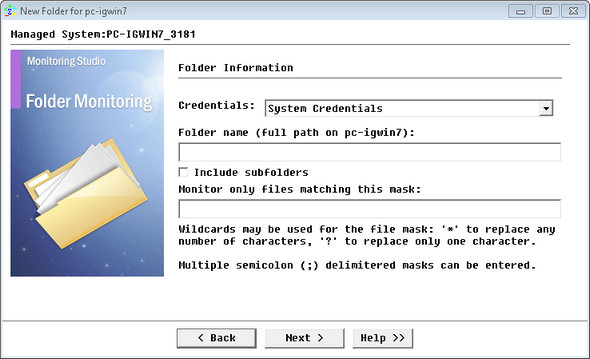
Monitoring Folders - Folder Information
| 5. | Select the parameters to be monitored for this folder. |
| 6. | Select an option from the When folder is empty field to have Monitoring Studio perform the corresponding action on the time-based parameters when the monitored folder is empty (the time-based parameters are: OldestModifiedFileElapsedTime, LastModified, FileElapsedTime and LongestTimeFileRemainsInFolder): |
| • | Do not update the time-based parameters: The parameters' values are not updated, and the alerts are not cleared (Default). In this case, the parameters keep the same value as previously set upon the last collect. If the last value set was within an alarm range, the alert remains active until the value is set again, that is when the folder is no longer empty. |
| • | Suspend the time-based parameters: The parameters' values are not set, but any alert is cleared when the folder becomes empty. In this case, the parameters are suspended (i.e. deactivated) and immediately enabled again. The value of these parameters are not updated and the parameters remain offline in the PATROL Console until a new value is set, that is when the folder is no longer empty. If the parameters were previously in alarm, the alert is not cleared (No PATROL event (STD/9) is triggered). |
| • | Set the time-based parameters to zero: The parameters' values are reset to zero and all alerts are automatically acknowledged. In this case, the parameters are set to zero as long as the folder remains empty. While the value could be considered incorrect, it ensures that previous alerts are cleared and that the corresponding PATROL event (STD/9) is triggered (assuming that zero is out of the alarm range). |
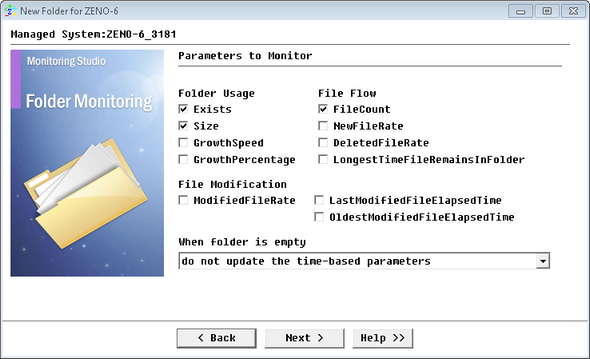
Monitoring Folders - Parameters Selection
| 9. | Click Finish. The corresponding File instance (Folder: <Display Name>) is created in the PATROL Console. The collected parameters for Folder Monitors are listed in the SEN_MS_FOLDER chapter. |
|


