|
The Multi-Parameter Formula Monitor can monitor all the KMs that are loaded in your PATROL Console. This feature more precisely extracts other KMs' parameter values and computes them with a mathematical formula or a pre-defined PSL function. The returned value can be used to perform additional operations such as converting units, performing correlation, etc.
To create a multi-parameter formula
| 1. | In the PATROL Console, right-click the Host or Monitor Group icon and select KM Commands > New > Monitor... |
| 2. | Select Multi-Parameter Formula from the drop-down list and click Next. |
| 3. | Specify the parameters to use in the formula: |
| ▪ | In the list of parameters currently available on the Agent, select the parameters required (The maximum number of parameters supported by Monitoring Studio is 26) |
 Offline parameters and parameters with no values are displayed as "OFFLINE" in the list. Avoid selecting these parameters if you want your formula to be properly applied. Offline parameters and parameters with no values are displayed as "OFFLINE" in the list. Avoid selecting these parameters if you want your formula to be properly applied.
| ▪ | (Optional) Check the Use the objects display name to build the PATROL IDs option to allow the use of instance labels instead of PATROL IDs to determine a parameter's path. This option may be particularly useful when an object ID is unknown |
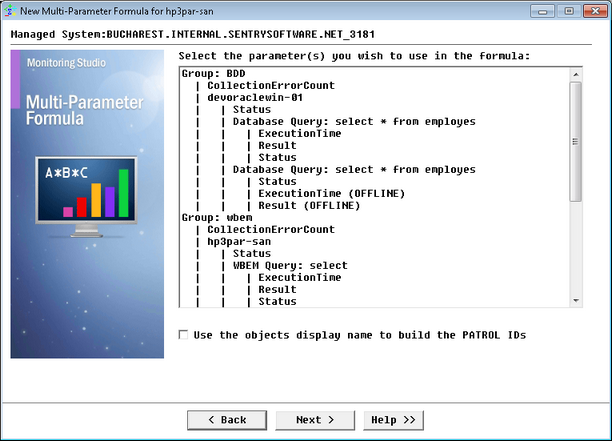
Monitoring a Loaded KM — Parameters Selection
| 4. | Define the formula to apply to the monitored parameter(s): |
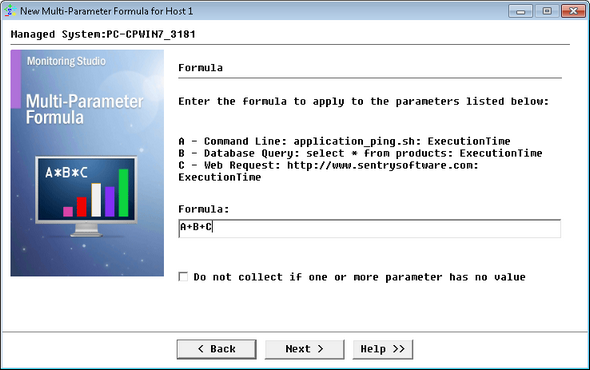
Monitoring a Loaded KM — Defining a formula to apply to the selected parameter(s)
| ▪ | Formula: Enter the formula you wish to apply to the parameter(s). The parameters are identified by a letter listed in the dialog box. Build the required formula using: |
| o | The uppercase letter preceding the parameter (A, B, etc.). |
| o | PSL operators: addition (+), subtraction (-), multiplication (*), division (/) concatenation (.), bitwise (&), etc. |
Examples for predefined PSL functions
To join two different tables from text parameters
The swTableJoin() PSL function is used to join two different tables from text parameters:
swTableJoin(tableA, separatorsA, keyColumnA, tableB, separatorsB, keyColumnB, defaultRightLine, keyType, timeout)
|
where:
| • | tableA is the left table derived from text parameter A |
| • | separatorsA are the separators that separate the columns in tableA |
| • | keyColumnA is the key column number in tableA used for matching the key columns in tableB |
| • | tableB is the right table derived from text parameter B |
| • | separatorsB are the separators that separate the columns in tableB |
| • | keyColumnB is the key column number in tableB used for matching the key columns in tableA |
| • | defaultRightLine (Optional) default rightTable line, when a match is not found |
| • | keyType (Optional) key type such as wbem used by Matsya TableJointClient used by the Java client. |
| • | timeout (Optional) timeout for the table joint query. |
Example:
swTableJoin(A, "|", 1, B, "|", 1)
where:
| • | Table 1 (in parameter A: path1/Result): |
key 1|A|B|C|
key 2|aa|bb|cc|
key 3|1|2|3|
| • | Table 2 (in parameter B: path2/Result): |
key 1|X|Y|Z|
key 2|xx|yy|zz|
key 3|4|5|6|
The returned output is a table that is set to the Result text parameter:
key 1;A;B;C;key 1;X;Y;Z;
key 2;aa;bb;cc;key 2;xx;yy;zz;
key 3;1;2;3;key 3;4;5;6;
|
To find the minimum value among several parameters:
Use the swGetMinimum() PSL function to find the minimum value for the chosen list of parameters (where A and B are number parameters):
To find the maximum value among several parameters:
Use the swGetMaximum() PSL function to find the maximum value for the chosen list of parameters (where A and B are number parameters):
To find the average value among several parameters:
Use the swGetAverage() PSL function to find the average value for the chosen list of parameters (where A and B are number parameters):
The returned output of the swGetMinimum, swGetMaximum, and swGetAverage PSL functions will be displayed by the Value parameter.
 If the formula or parameters entered are not PSL-compatible, an error will be reported by the Group's CollectionErrorCount parameter. If the formula or parameters entered are not PSL-compatible, an error will be reported by the Group's CollectionErrorCount parameter.
|
| • | Do not collect if one or more parameter has no value: Select this option if you wish to skip the collect when one or more parameters are not populated (usually after a PATROL Agent restart). |
| 6. | Click Finish to start monitoring the selected parameters. The corresponding Multi-Parameter Formula instance (Multi-Parameter Formula: <Display Name>) is created in the PATROL Console. The collected parameters for Multi-parameter Formula Monitors are listed in the SEN_MS_FORMULA chapter. |
|


