Setting or Modifying Alert Thresholds


Setting or Modifying Alert Thresholds |
|
|
Monitoring Studio enables you to set alert thresholds for each parameter through a command menu. To set or modify alert thresholds, right-click any Monitor icon > KM commands > Thresholds...
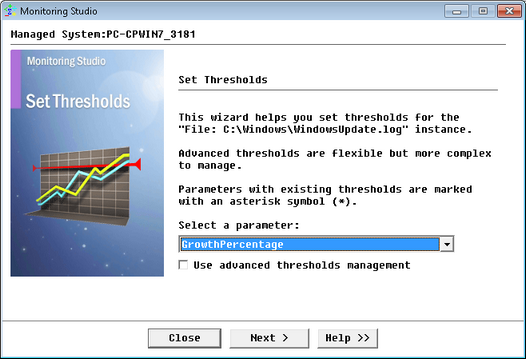
Threshold Management Wizard — Welcome Page A drop-down list displays the parameters available for the instance.
The Reference Guide lists all the classes with details on the menu commands and the parameters available for each class. Threshold Type and Alert actionsMonitoring Studio has two "types" of thresholds: Simple (2 alerts maximum) and Advanced (3 alerts maximum). Depending on the user’s selection, both types of thresholds can raise the following alerts:
In addition, you can set Alert Actions to be triggered when an alert is raised on a parameter. Please see the section: Alert Actions capabilities for more details on the same. Simple Thresholds
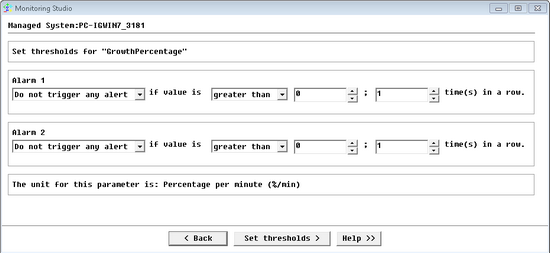
Simple Thresholds Settings This type of threshold is easy and very user-friendly: the threshold values are expressed in terms of "greater than/lower than". All that you need to do is to enter actual "limits" as per the specific requirement, and the frequency of occurrence. This type of threshold has a maximum of two alert types. Certain parameters have "pre-defined" values. Basically these parameters are the ones with boolean values, so the choice you can make can only be one or the other – depending on the parameter itself. Advanced thresholds
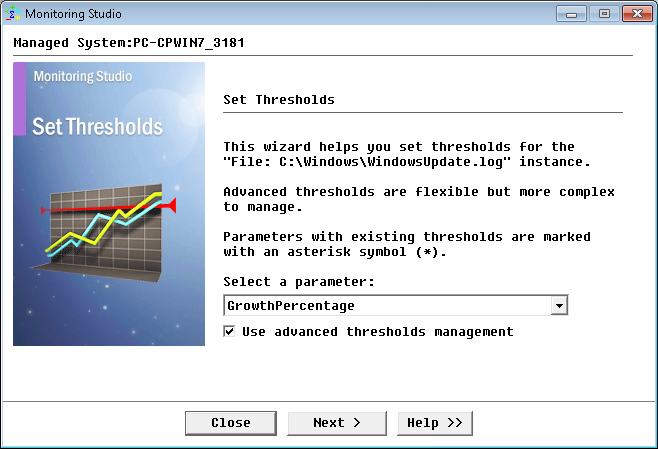
Threshold Manager Wizard – Parameter Selection Select a parameter and check the Use advanced thresholds management box to access the advanced threshold options. Click Next. The advanced thresholds mode allows you to set up to a maximum of 3 alerts.
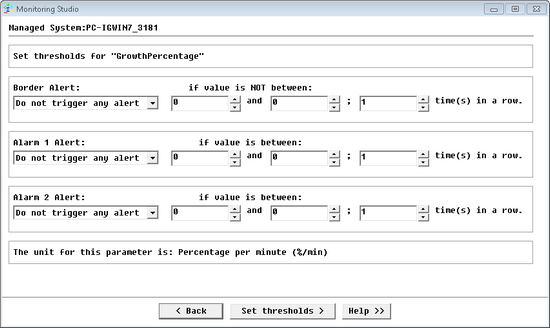
Threshold Manager Wizard – Thresholds Setting This type of threshold setting is a little more complex as it requires the user to enter specific ranges of values as thresholds. This setting is like that of PATROL thresholds, where you have the possibility of raising three alert types:
|