|
BEA WebLogic is a J2EE Platform product family that includes a J2EE application server- WebLogic Server, an Enterprise Portal - WebLogic Portal, an Enterprise Application Integration platform, a Transaction Server and Infrastructure - WebLogic Tuxedo, a Telecommunication Platform - WebLogic Communication Platform and also an HTTP web server for Unix, Linux, Microsoft Windows, and more.
 To monitor your WebLogic application server within your PATROL environment, you first need to download the relevant WebLogic JAR files/zipped files from the Sentry Software download page and place them into: %PATROL_home%/bin. To monitor your WebLogic application server within your PATROL environment, you first need to download the relevant WebLogic JAR files/zipped files from the Sentry Software download page and place them into: %PATROL_home%/bin.
To monitor your WebLogic application server within your PATROL environment:
| 1. | Right-click the Monitored Application icon > KM Commands > New > Java MBean polling (JMX) |
| 2. | From the drop-down list, select the environment: WebLogic "x" |
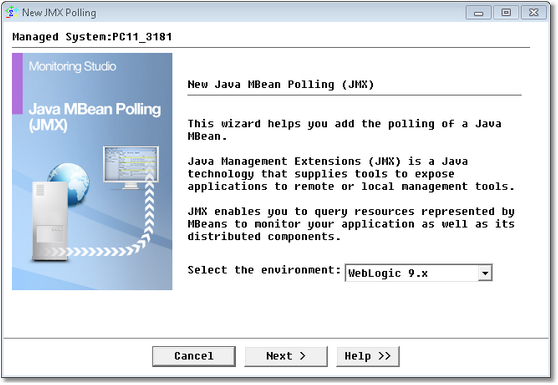
Java MBean Polling Wizard (WebLogic Environment) — Welcome Page
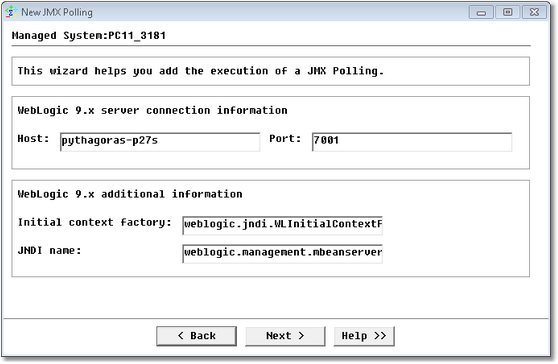
Java MBean Polling Wizard (WebLogic Environment) — Connection Information Page
| ▪ | Host: Name of host server where the WebLogic application server is installed. |
| ▪ | Port: Port number. (By default: 7001). Can be modified. |
| ▪ | Initial context factory: weblogic.jndi.WLInitialContextFactory (by default). Can be modified. |
| ▪ | For WebLogic 9.x and higher: weblogic.management.mbeanservers.domainruntime (by default). Can be modified. |
| ▪ | For WebLogic 8.x: weblogic.management.adminhome (by default). Can be modified. |
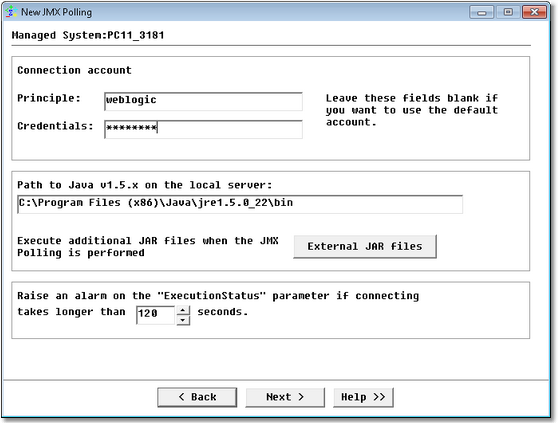
Java MBean Polling Wizard (WebLogic Environment) — Connection Account Credentials Page
| • | Principle: Enter the username |
| • | Credentials: Enter the password |
| • | Path to Java on the local server: Enter your java bin path and ensure that all the settings are correct. |
| • | Connection timeout period: Default is set to 120 seconds; you can change this if you wish. When this timeout is reached, Monitor Studio considers the host to be unreachable and triggers an alert on the ExecutionStatus parameter. |
Click Next. If the credentials entered are correct, Monitoring Studio connects to the application server and presents a list of domains for you to select from.
Step 3: Select the domain
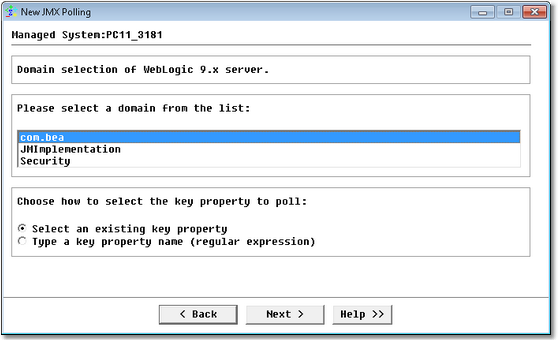
Java MBean Polling Wizard (WebLogic Environment) — Domain Selection Page
| 1. | Select the domain to monitor |
| 2. | Choose the key property selection mode. You can either choose to select a key property among a list of existing ones or type a regular expression for the key property name. |
Step 4: Specify the key property
Depending on the option selected at the previous step, you will either have to select a key property among a list of existing ones or type a key property name (regular expression).
Step 5: Select the attribute
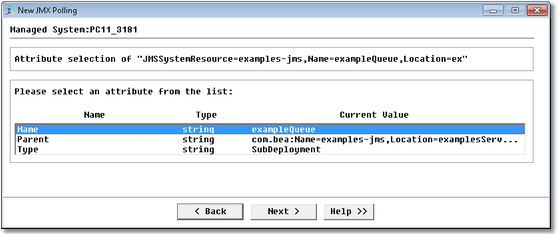
Java MBean Polling Wizard (WebLogic Environment) — Attribute Selection Page
Select the attribute from the list and click Next.
You can only select one attribute at a time. To monitor several attributes of the same key property, you are required to go through the wizard each time.
Step 5a: Select parameters to collect
When you select a numeric attribute (boolean, integer, number) at the previous step, an additional panel is displayed to allow you to select the parameters to collect.
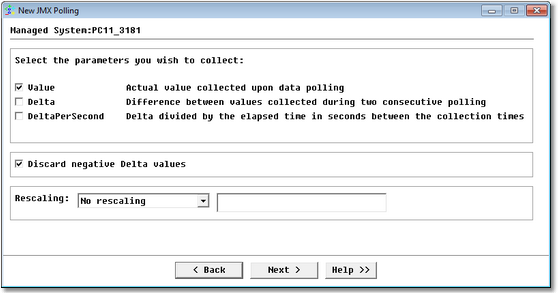
Java MBean Polling Wizard (WebLogic Environment) — Parameters Selection Page
| ▪ | Value: Reports the actual value collected upon data polling |
| ▪ | Delta: Calculates the difference between values collected during two consecutive polling. |
| ▪ | DeltaPerSecond: Reports the value resulting of the division of the Delta by the number of seconds elapsed between the collection times |
| • | Select the option Discard negative Delta values if you do not want negative values to be reported on the graph. |
| • | Use the Rescaling option to configure Monitoring Studio to rescale the value that is being extracted in order to have a more readable graph in the PATROL Console. The available rescaling options are: |
| ▪ | Divide the value by a value that then gives you the reading in terms best suited to you |
| ▪ | Multiply the extracted value by a constant factor |
| This can be useful if you extract numeric values in bytes but prefer to show a graph in megabytes. In such a case, you would divide the values by 1048576 (1024*1024). |
Step 6: Monitoring Studio settings
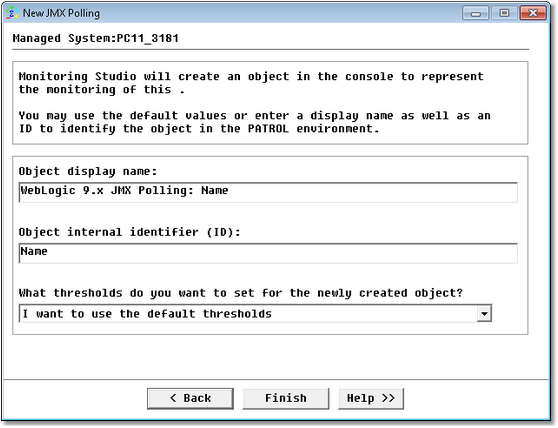
Java MBean Polling Wizard (WebLogic Environment) — Settings Page
Object display name: Label displayed in the PATROL Console for this WebLogic monitoring.
Object internal identifier (ID): PATROL internal identifier.
What thresholds do you want to set for the newly created instance? A drop-down list allows you to select the mode of setting alert thresholds:
| • | Use default thresholds: Uses the default thresholds set by Monitoring Studio |
| • | Set custom thresholds: Allows you to customize the thresholds for all parameters of the instance |
| • | Use default thresholds and customize them: Sets the default Monitoring Studio thresholds on certain parameters (see list of parameters with default thresholds) and then allows you to customize any/all of them. This is mainly intended to help save time if you wish to customize the thresholds of just one of many parameters for the instance, and leave the default settings for the others. |
 If you select Use default thresholds and customize them; on clicking Finish, the Set Thresholds panel will appear, certain parameters for the instance may appear with an asterisk symbol - indicating that they already have thresholds. You can then customize (any/all) the thresholds of the parameters as per your specific needs. If you select Use default thresholds and customize them; on clicking Finish, the Set Thresholds panel will appear, certain parameters for the instance may appear with an asterisk symbol - indicating that they already have thresholds. You can then customize (any/all) the thresholds of the parameters as per your specific needs.
| • | Do not set any thresholds for now: No thresholds will be set on any parameter of the instance, and as a result no alerts will be triggered. Monitoring Studio will poll the object and return the output of the polling – but will not raise any alerts until you set thresholds. |
Thresholds can be set or modified at anytime by right-clicking on the instance > KM commands > Set Thresholds.
Click Finish. An icon for the monitored instance will appear under the main Monitoring Studio icon bearing the name entered/displayed in the Object display name field; and at the next collect you will see values for the newly monitored object. You can add a string or numeric value search if you wish.
WebLogic objects are instances of the SW_JMX class.
See Also
Java MBean Polling (JMX)
JBoss
JOnAS
Numeric Value extraction
String Search
SW_JMX
WebSphere
| 

