JBoss


JBoss |
|
|
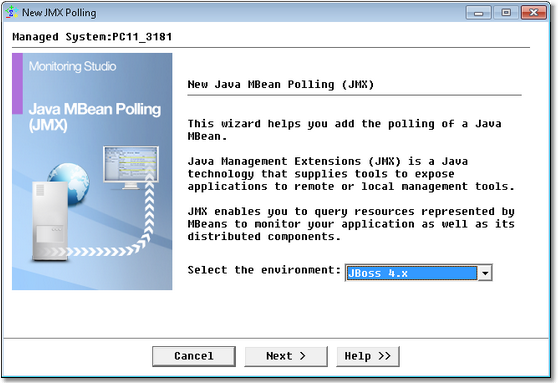
JBoss is an open source Java EE-based application server implemented in Java. As the JBoss Application Server is 100% pure Java, it is interoperable with most operating systems that are capable of running a Java Virtual Machine (JVM); including Red Hat Enterprise Linux, SUSE Linux, Microsoft Windows, Sun Solaris, HP-UX, and others. To monitor your JBoss AS within your PATROL environment, right-click the Monitored Application icon > KM Commands > New > Java MBean polling (JMX) and from the drop-down list, select the environment.
Java MBean Polling Wizard (JBoss Environment) — Welcome Page Step 1: Enter the server connection information and the additional information
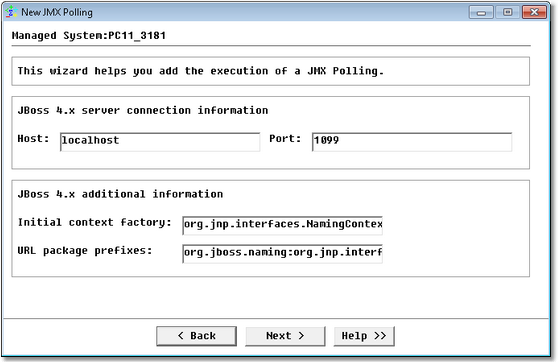
Java MBean Polling Wizard (JBoss Environment) — Connection Information Page JBoss connection information:
Additional information for JBoss 3.2.x, 4.x, and 5.x:
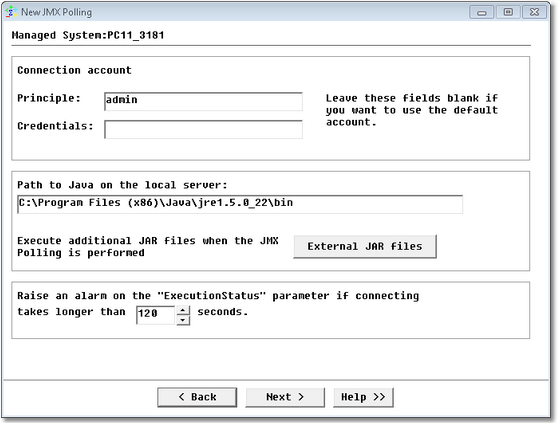
Step 2: Enter the connection account credentials
Java MBean Polling Wizard (JBoss Environment) — Connection Account Credentials Page
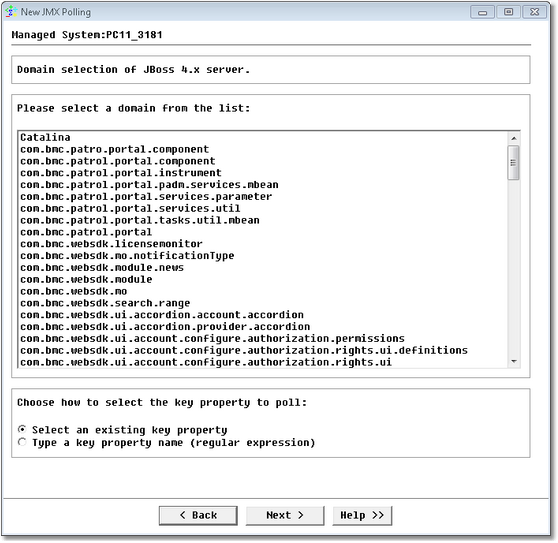
Click Next. If the credentials entered are correct, Monitoring Studio connects to the application server and presents a list of domains for you to select from. Step 3: Select the domain
Java MBean Polling Wizard (JBoss Environment) — Domain Selection Page
Step 4: Specify the key propertyDepending on the option selected at the previous step, you will either have to select a key property among a list of existing ones or type a key property name (regular expression). Step 5: Select the attribute
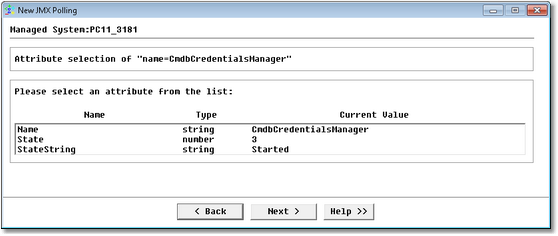
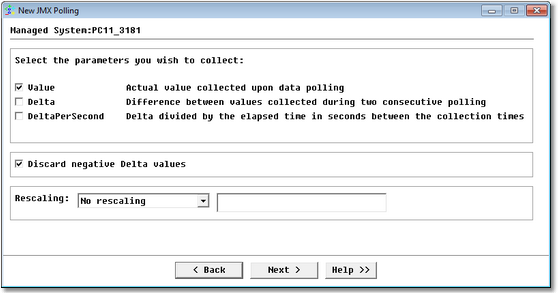
Java MBean Polling Wizard (JBoss Environment) — Attribute Selection Page Select the attribute from the list and click Next. You can only select one attribute at a time. To monitor several attributes of the same key property, you are required to go through the wizard for each attribute. Step 5a: Select parameters to collectWhen you select a numeric attribute (boolean, integer, number) at the previous step, an additional panel is displayed to allow you to select the parameters to collect.
Java MBean Polling Wizard (JBoss Environment) — Parameters Selection Page
Step 6: Monitoring Studio settingsYou arrive at the final step of the wizard that displays the object display name, ID and threshold options. For more information, refer to the section Configuring the Monitoring Studio Settings. Click Finish. An icon for the monitored instance will appear in the Console bearing the name entered/displayed in the PATROL Label field; and at the next collect you will see values for the newly monitored object. You can add a string or numeric value search if you wish. JBoss objects are instances of the SW_JMX class. See Also
|