|
The Dynamic Object Builder Monitor splits the return output of objects and applies a set of user-defined rules on this return output data.
Once you have created a Dynamic Object Builder instance, Monitoring Studio:
| • | applies the user-defined set of rules to the output data |
| • | extracts each matching line and creates a dynamic object for each of them in the PATROL Console according to the user-defined naming |
| • | groups all dynamic objects under a dynamic container to facilitate the management of all the dynamic objects. The Hide/Show Template KM Command enables you to display or not a dynamic container content. |
Dynamic objects can be analyzed with String Search, Numeric Value Extraction and Value Map.
To create a dynamic object:
| 1. | In the PATROL Console, right-click one of the following monitoring features: |
| 2. | Select KM Commands > New > Dynamic Object Builder... |
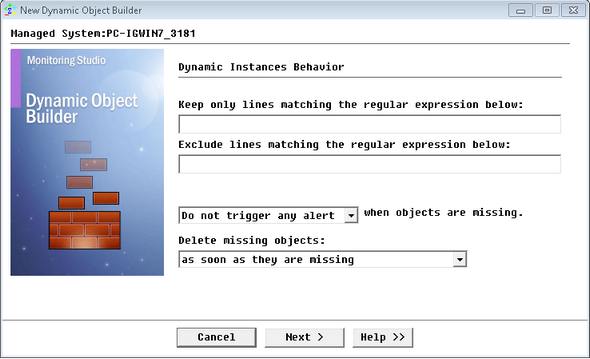
Monitoring Dynamic Return Outputs - Dynamic Instances Behavior
| 3. | Define the rules to apply to the output data: |
| ▪ | Keep only lines matching the regular expression below: Specify the regular expression to be searched for by the Dynamic Object Builder. Each matching line is displayed in a separated Dynamic Item automatically added in the PATROL Console under the Dynamic Container icon. Non-matching lines are discarded. If nothing is specified, all lines are kept. |
| ▪ | Exclude lines matching the regular expression below: Specify the regular expression to be searched for by the Dynamic Object Builder. Each matching lines will be ignored. |
| ▪ | Define if and how Monitoring Studio must trigger an alert when the Dynamic Item, containing the extracted line, is missing from one collect to another: |
| ▪ | Do not trigger any alert: Select this option if you do not wish Monitoring Studio to trigger any alert when objects are missing |
| ▪ | Trigger an INFORMATION: Select this option if you wish Monitoring Studio to trigger an Information alert when objects are missing |
| ▪ | Trigger a WARNING: Select this option if you wish Monitoring Studio to trigger a Warning alert when objects are missing |
| ▪ | Trigger an ALARM: Select this option if you wish Monitoring Studio to trigger an Alarm alert when objects are missing |
If you have chosen to trigger an alert, a Status parameter will automatically be activated and displayed under the Dynamic Item in the PATROL Console to indicate that the Dynamic Item is missing. Click the Status parameter to open a graph pane displaying the status history of the Dynamic Item.
| ▪ | Delete missing objects: Set this option according to how you want Monitoring Studio to delete missing objects in the console. The available options are: |
| ▪ | Never: Monitoring Studio never deletes missing objects in the console. They will always be present. |
| ▪ | As soon as they are missing: Monitoring Studio deletes missing objects from the console as soon as their absence is discovered. If an alarm is configured, Monitoring Studio will trigger the alarm before deleting the object. |
| ▪ | When they are missing... in a row: Monitoring Studio deletes missing objects after they have been missing a specific number of times in a row. |
| 5. | Configure the Dynamic Instances Monitor settings templates: |
| ▪ | Internal ID Template: PATROL internal identifier of the template. |
| ▪ | Display Name Template: Label that will be displayed in the PATROL Console for this template. Indicate the column number in which the name of the object will be found by Monitoring Studio (e.g.: %{1} for the first column). |
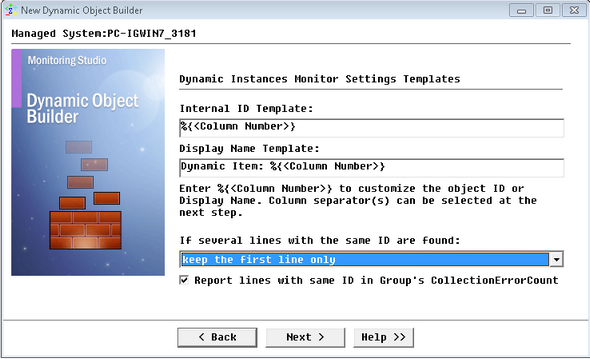
Monitoring Dynamic Return Outputs - Dynamic Instances Monitor Settings Templates
| ▪ | If several lines with the same ID are found: Select the option corresponding to the action you want Monitoring Studio to perform: |
| ▪ | Keep the first line only: the first matching line found will be reported, all other matching lines with the same ID subsequently found will be ignored. |
| ▪ | Keep the last line only: the last matching line found will be reported, all other matching lines with the same ID previously found will be ignored. |
| ▪ | Group these lines under the same instance: all matching lines with the same ID will be reported. |
| ▪ | Report lines with same ID in Group's CollectionErrorCount: Select this option to have the CollectionErrorCount parameter of the Group reflect possible alerts triggered when the Dynamic Object instance reports multiple lines with the same ID. The CollectionErrorCount parameter of the Group reports on the collection errors of any Monitor associated to the group, for which this option is available and selected, providing a global view of the collection errors for the whole Group. |
| 6. | Define the way the Dynamic Object Builder detects columns of output data: |
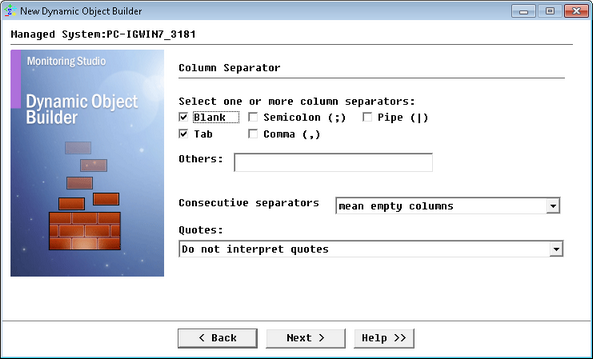
Searching for a Specific String — Column separator definition
| ▪ | Select or de-select applicable separators. For custom separators, type the character(s) one after the other in the Others field. |
| ▪ | Indicate how consecutive separators will be considered: |
| ▪ | Consecutive separators must be treated as a single one (useful for data separated by comma, such as in a .csv file): Typically, it indicates that consecutive separators must be treated as a single separator. |
| ▪ | Consecutive separators mean empty columns (useful for data separated by comma, such as in a .csv file): Each separator is treated as an individual column separator and the column is considered empty. |
| ▪ | Indicate how quotes will be considered: |
| ▪ | Do not interpret quotes: All applicable separators will be considered as a column separator even when enclosed in quotes. |
| ▪ | Consider text in "double quotes" as a single column: Text enclosed in double quotes will be considered as a single column. Any separator found within double quotes will not be considered as a column separator. |
| ▪ | Consider text in 'single quotes' as a single column: Text enclosed in single quotes will be considered as a single column. Any separator found within single quotes will not be considered as a column separator. |
| 9. | Click Finish. The corresponding instance Dynamic Instance <parent instance name> is created in the PATROL interface. |
|


